Outdoor Indoor
For this tutorial use the Tutorial/Maps/TutorialMap_Collider map provided in
the Demo Project
Setup indoor area
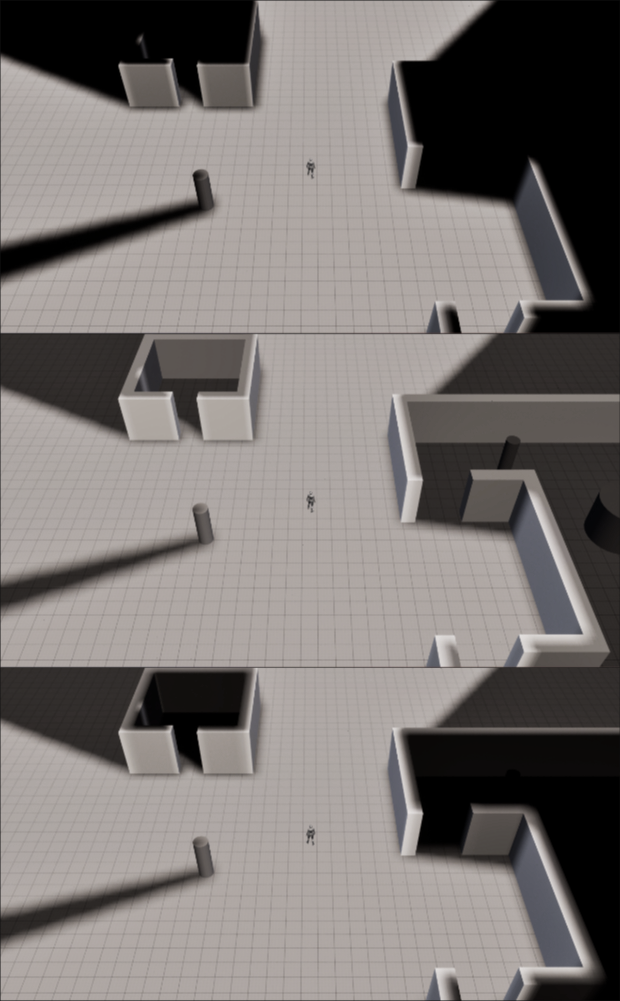
Depending on the game, you might need to dissociate the indoor from the outdoor, such as only the indoors are undiscovered. From my experience, it's easier to clear the whole FOW and add fog to the indoor area. The next picture represents the result we will have step by step:
-
- FOW display without any setup
-
- FOW display when revealing the whole fog
-
- FOW display after adding the indoor fog
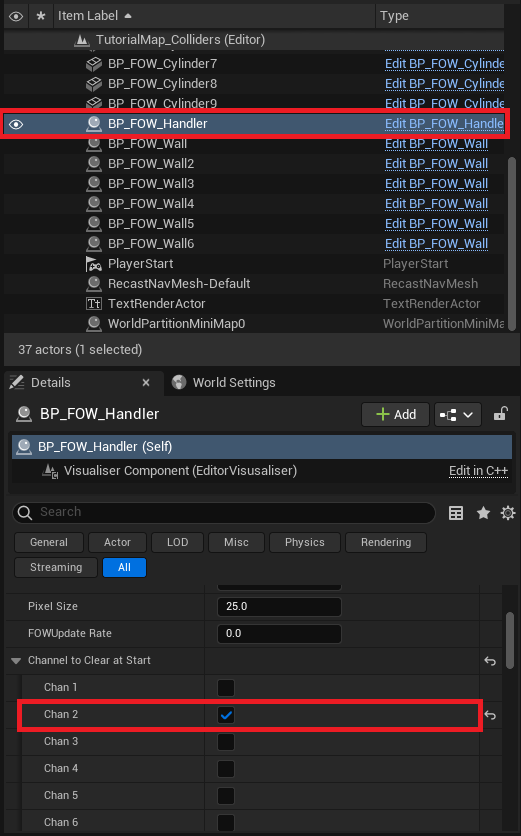
First, get the BP_FOW_Handler and go to the detail panel. Find the ChannelToClearAtStart and check the
chan2 box. It will set the default value of the second channel of every floor to 1 to clear the black fog.
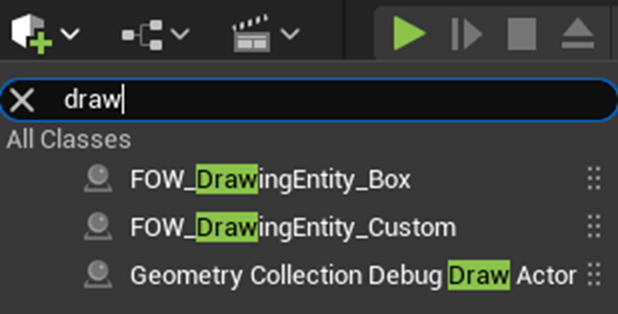
Now we're gonna draw back the fog in the 2 indoor areas. There are two types of drawing entities provided to do so:
FOW_DrawingEntity_Box, drawing fog in a boxFOW_DrawingEntity_Custom, drawing fog in the provided custom geometry
Drag and drop both of the drawing entities to your scene and let's set up the indoor fog.
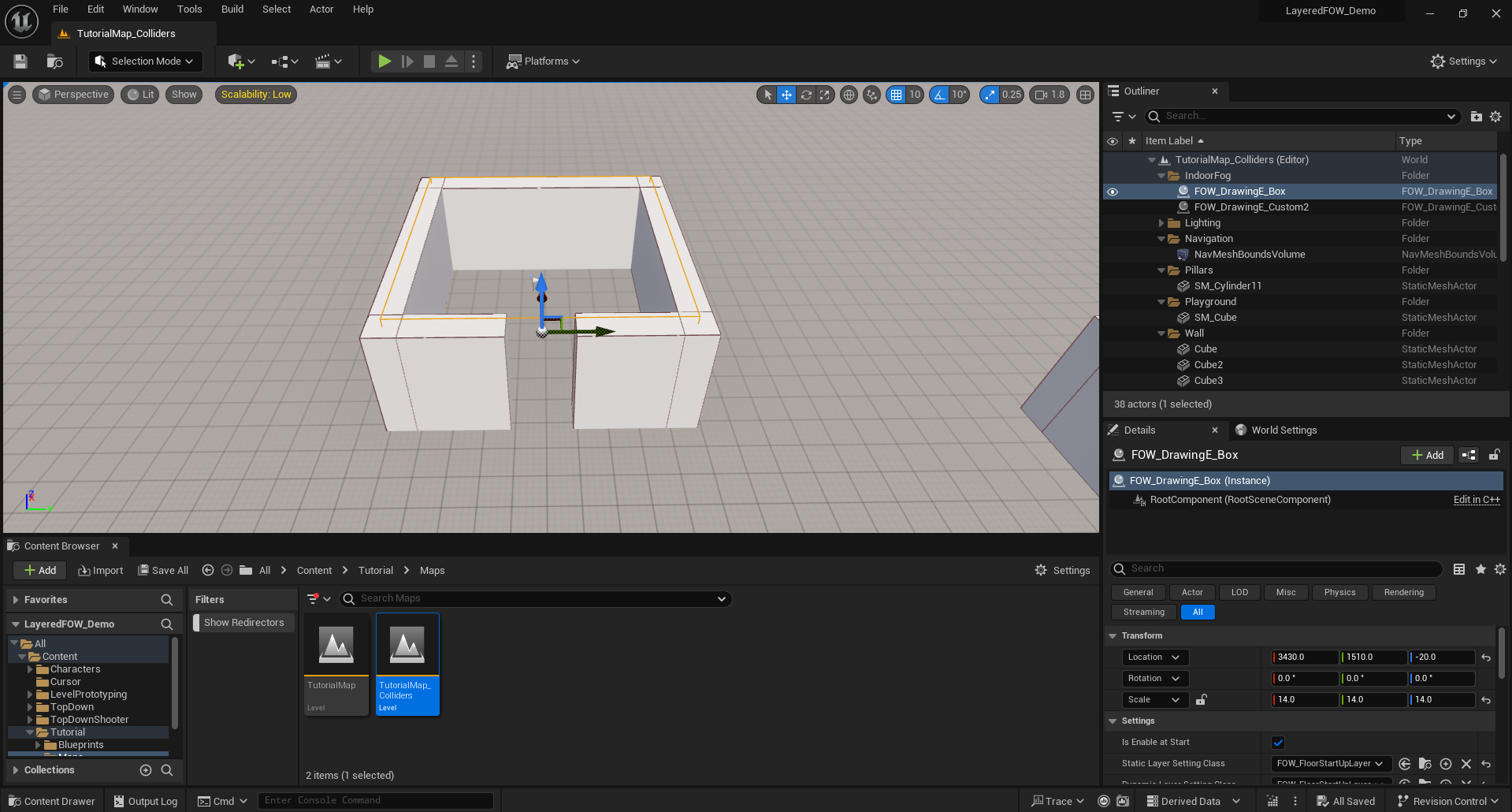
First, move the FOW_DrawingEntity_Box to the tiny room and scale it to be as big as the room.
Second, move the FOW_DrawingEntity_Custom to the bigger room and add 8 vertices in the CustomGeometryVertices
in the details panel. Select the top view for the viewport and place the vertices around the room.
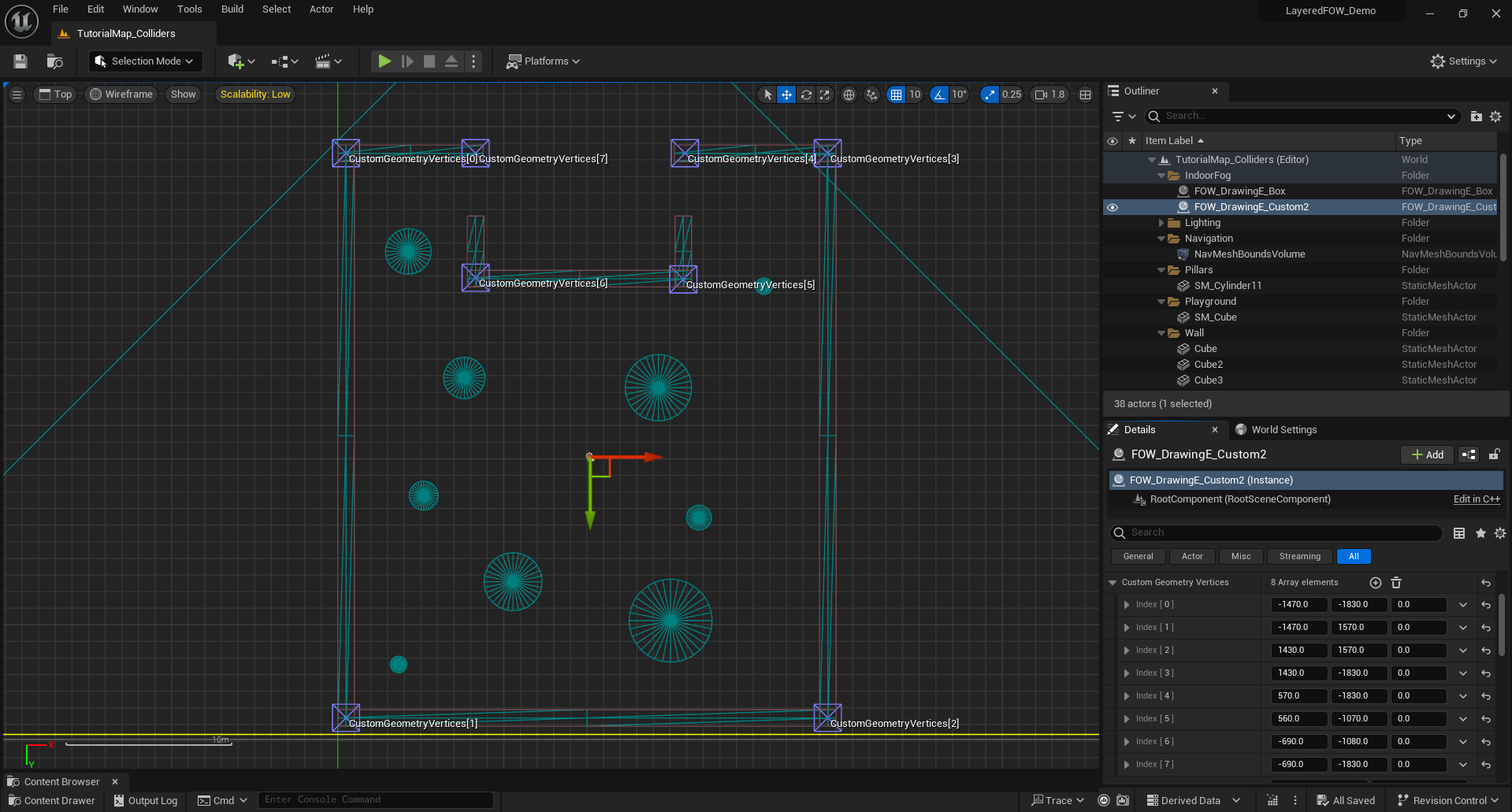
Finally, By default, Drawers will remove fog; however, this time we need to add fog and only when the game starts.
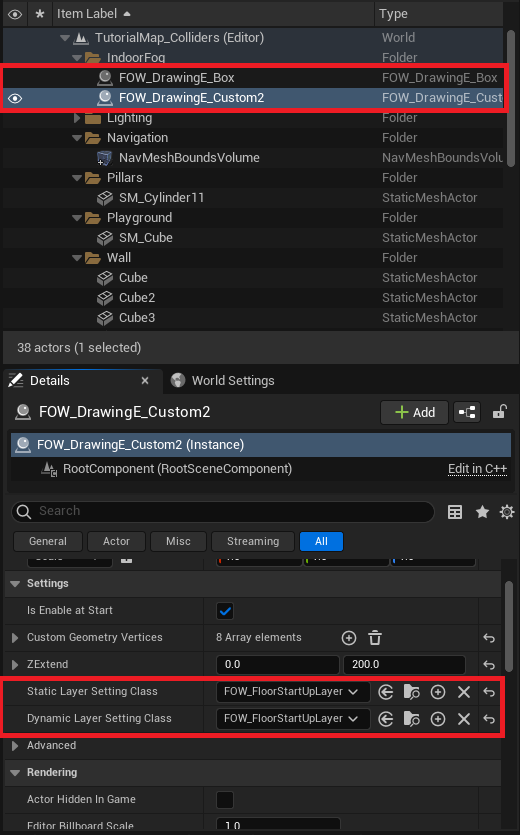
A specific LayerSettings is provided to do so. In both drawing entities, in the details panel, replace the static
and dynamic layer setting class by FOW_FloorStartUpLayer.
Documentation built with Unreal-Doc v1.0.9 tool by PsichiX